> ## Documentation Index
> Fetch the complete documentation index at: https://docs.trophy.so/llms.txt
> Use this file to discover all available pages before exploring further.
# Users
> Learn how to track interactions across your userbase using Trophy.
What are Users?
Users are the individual people that use your product. You tell Trophy about your users through APIs and use the dashboard to design gamification experiences around them.
Users must be individuals, they cannot be companies or organisations. To create organizational structures or user groupings, consider using a [custom user attribute](#custom-user-attributes).
Key Attributes
Key attributes are properties of users controlled and managed by Trophy and are for things like `id` or `email`, some are required while others are optional.
Required Attributes
Trophy only requires one key attribute, `id`. Every user you tell Trophy about must have an `id`, this is what identifies them as a unique person.
This is the ID of the user in **your** database.
To make things simple, Trophy lets you use your own `id` that you already have
in your database instead of needing to manage another one just for Trophy.
Optional Attributes
Additionally, you can tell Trophy about any of the following optional key attributes and it will make them available to you as part of your gamification experience:
The user's full name. This is accessible in email templates and other areas
where you may want to address the user by name.
The user's email address. This address will be used in any
[Emails](/features/emails) that you set up as part of your gamification
experience with Trophy.
The user's time zone. Must be specified as an [IANA timezone
identifier](https://en.wikipedia.org/wiki/List_of_tz_database_time_zones).
Used for streaks, leaderboard rankings and sending emails to users in
accordance with their local clock.
In JavaScript, you can fetch the users time zone using this snippet:
```js Fetching timezone theme={null}
// e.g. 'Europe/London'
const timezone = Intl.DateTimeFormat().resolvedOptions().timeZone;
```
If you've configured any Trophy [Emails](/features/emails), then they'll only
be sent to a user when this field is true. Note: If you don't provide an
`email`, attempting to set this field to true will result in an error.
The list of device tokens to associate with the user. If you've configured any
Trophy [Push Notifications](/features/push-notifications), then they'll only
be sent to a user when this field is provided.
Custom User Attributes
This feature is available on the [Pro](/account/billing#pro-plan) plan
 Custom user attributes are managed by you and can be anything you like based on your use case.
For example a language learning app might use a custom user attribute for the language a user is learning, or a study platform might use one for the users favourite subject.
Custom user attributes let you tell Trophy about this contextual information and use it to personalize gamification features.
Custom user attributes are managed by you and can be anything you like based on your use case.
For example a language learning app might use a custom user attribute for the language a user is learning, or a study platform might use one for the users favourite subject.
Custom user attributes let you tell Trophy about this contextual information and use it to personalize gamification features.
Creating Attributes
To create a new custom user attribute, head to the [attributes tab](https://app.trophy.so/users/attributes) of the users page in the Trophy dashboard and hit the *Add User Attribute* button.
Give the attribute a name and a unique key. The key is what you'll use to reference the attribute in API calls.
Setting Attributes
Attributes can be assigned values for specific users using their unique key either inline, as users increment metrics through the [metric increment API](/api-reference/endpoints/metrics/send-a-metric-change-event), or explicitly through the [user identification](/api-reference/endpoints/users/identify-a-user), [create user](/api-reference/endpoints/users/create-a-user), or [update user](/api-reference/endpoints/users/update-a-user) APIs.
Trophy will only set values of attributes that have first been created
in the dashboard. We do this to help you keep a clean set of attributes and
prevent accidental overwrites.
If you receive an error similar to the following then you might have miss-spelled the attribute key in the request, or you need to create the attribute first in the Trophy dashboard:
```json theme={null}
{
"error": "Invalid attribute keys: pln. Please ensure all attribute keys match those set up at https://app.trophy.so/users/attributes."
}
```
Across all APIs, the schema for setting attribute values is consistent. Here's an example of a request payload that sets the value of two custom user attributes `subject` and `plan`:
```json {4-7} theme={null}
{
"name": "Joe Bloggs",
"email": "joe.bloggs@example.com",
"attributes": {
"subject": "physics",
"plan": "free"
}
}
```
Using Attributes
Use custom user attributes across Trophy to personalize gamification features , aggregate and filter data returned from APIs, and to segment and compare user cohorts in analytics.
Feature Personalization
Custom user attributes can be used to personalize achievements, customize the way points are earned by different users and more. Follow the links to the relevant pages below to learn more.
Configure achievements that can only be unlocked by specific users.
Personalize how different users earn points.
Control which users receive gamified emails.
Personalize email copy and subject lines with custom user attributes.
Data Aggregation and Filtering
You can use custom user attributes to aggregate and filter data returned from some APIs to support a wide range of gamification use cases. In all cases, attributes are included in the `userAttributes` query parameter using a consistent schema:
`?userAttributes=city:london,subscription-plan:pro`
Here's a list of all APIs that support the `userAttributes` query parameter:
* [Points Summary](/api-reference/endpoints/points/get-points-summary)
Segmented Analytics
Custom user attributes can be used to segment and compare retention and engagement charts between user groups.
This is useful to understand which cohorts are making full use of your gamification features, and which are struggling to engage and therefore require some attention.
Identifying Users
When you tell Trophy about a user in your platform, we call this **identification**. There are two ways you can identify users with Trophy, [inline](#inline-identification) and [explicit](#explicit-identification) identification.
We recommend getting started with inline identification if you're new to
Trophy. If you decide you need more control, try explicit identification.
Inline Identification
Inline identification is the easiest way of telling Trophy about your users as it doesn't require any specific user identification code. You simply tell Trophy about users as they go about normal use of your platform.
In practice this means whenever you use the [Metric Event API](/api-reference/endpoints/metrics/send-a-metric-change-event), you pass along full details of the user who triggered the event.
Here's an example where an API call is made to the metric events API, and the details of the user who made the interaction are passed along in the request body:
```bash cURL theme={null}
curl -X POST https://app.trophy.so/api/metrics/flashcards-flipped/event \
-H "X-API-KEY: " \
-H "Content-Type: application/json" \
-d '{
"user": {
"id": "18",
"email": "user@example.com",
"tz": "Europe/London"
},
"value": 750
}'
```
```typescript Node theme={null}
trophy.metrics.event("flashcards-flipped", {
user: {
id: "18",
email: "user@example.com",
tz: "Europe/London",
},
value: 750,
});
```
```python Python theme={null}
client.metrics.event(
key="flashcards-flipped",
user=EventRequestUser(
id="18",
email="user@example.com",
tz="Europe/London",
),
value=750.0,
)
```
```php PHP theme={null}
$user = new EventRequestUser([
'id' => '18',
'email' => 'user@example.com'
]);
$request = new MetricsEventRequest([
'user' => $user,
'value' => 750
]);
$trophy->metrics->event("flashcards-flipped", $request);
```
```java Java theme={null}
MetricsEventRequest request = MetricsEventRequest.builder()
.user(
EventRequestUser.builder()
.id("18")
.email("user@example.com")
.build()
)
.value(750)
.build();
EventResponse response = client.metrics().event("flashcards-flipped", request);
```
```go Go theme={null}
response, err := client.Metrics.Event(
"flashcards-flipped",
&api.MetricsEventRequest{
User: &api.EventRequestUser{
Id: "18",
Email: "user@example.com",
},
Value: 750,
},
)
```
```csharp C# theme={null}
var user = new EventRequestUser {
Id = "18",
Email = "user@example.com"
};
var request = new MetricsEventRequest {
User = user,
Value = 750
};
await trophy.Metrics.EventAsync("flashcards-flipped", request);
```
```ruby Ruby theme={null}
result = client.metrics.event(
:key => 'flashcards-flipped',
:user => {
:id => '18',
:email => 'user@example.com'
},
:value => 750
)
```
In this case, if this is the user's first interaction (i.e. they are a new user) then a new record will be created for them in Trophy automatically.
However if Trophy finds an existing record with the same `id`, then Trophy will update any details of the user that are passed through.
In other words, inline identification is by means of an `UPSERT` operation.
```mermaid theme={null}
flowchart LR
A@{ shape: sm-circ }
B@{ shape: diamond, label: "Is new user?" }
C@{ shape: rounded, label: "Identify new user" }
D@{ shape: rounded, label: "Update existing user" }
E@{ shape: rounded, label: "Process event" }
F@{ shape: framed-circle }
A-->B
B-- Yes --->C
B-- No --->D
C-->E
D-->E
E-->F
```
Identifying users in this way has two key benefits:
* All new users that sign up for your platform and increment a metric are automatically tracked in Trophy without any explicit identification code written by you
* Any changes to existing user properties like name or email address are automatically synced to Trophy the next time the user increments a metric
In this way inline identification allows you to keep your entire userbase in constant sync with Trophy with the least amount of code required by you.
This is why we recommend starting with inline identification first, then exploring explicit identification if you discover you need more control.
Explicit Identification
Explicit identification is when you write code in your application that explicitly tells Trophy about users separate from any metric interactions. This is useful if you want complete control over how and when Trophy learns about your users.
Scenarios where you might want to use explicit identification might be:
* You want to tell Trophy about new users immediately on sign-up, before they increment a metric
* You track a lot of metrics in Trophy, and don't want to repeat inline identification code.
* You want to only tell Trophy about a specific cohort of users, of which you control the conditions around
In this case, you can tell Trophy about new users using the [User Identification API](/api-reference/endpoints/users/identify-a-user).
```bash cURL theme={null}
curl --request PUT \
--url https://app.trophy.so/api/users/{id} \
--header 'Content-Type: application/json' \
--header 'X-API-KEY: ' \
--data '{
"email": "user@example.com",
"name": "User",
"tz": "Europe/London",
"subscribeToEmails": true
}'
```
Just like in inline identification, explicit identification also works by
means of an `UPSERT` operation meaning all user attributes are kept in sync
with Trophy automatically.
Creating Users
To explicitly create a new user in Trophy, use the [Create User API](/api-reference/endpoints/users/create-a-user).
Keeping Users Up To Date
To tell Trophy about an update to a user in your platform you can use the [Update User API](/api-reference/endpoints/users/update-a-user).
Any properties that you pass to Trophy will be updated to the new values you specify.
As [user identification](#identifying-users) keeps user records up to date by
default, it's usually not necessary to explicitly update users in Trophy every
time one of their properties changes in your application. However the user
update API is there if you really need it.
Setting User Preferences
Trophy has APIs to help you power a preference center that your users can use to control and customize how they interact with your gamification features.
This section walks through all the preferences that you can expose to your users, and their function.
Notification Preferences
You can use Trophy to send gamified [Emails](/features/emails) and [Push Notifications](/features/push-notifications) to your users.
Trophy's [update preferences API](/api-reference/endpoints/users/update-user-preferences) allows you to build a preference center within your application that your users can interact with to control which notifications they receive, and through which channels.
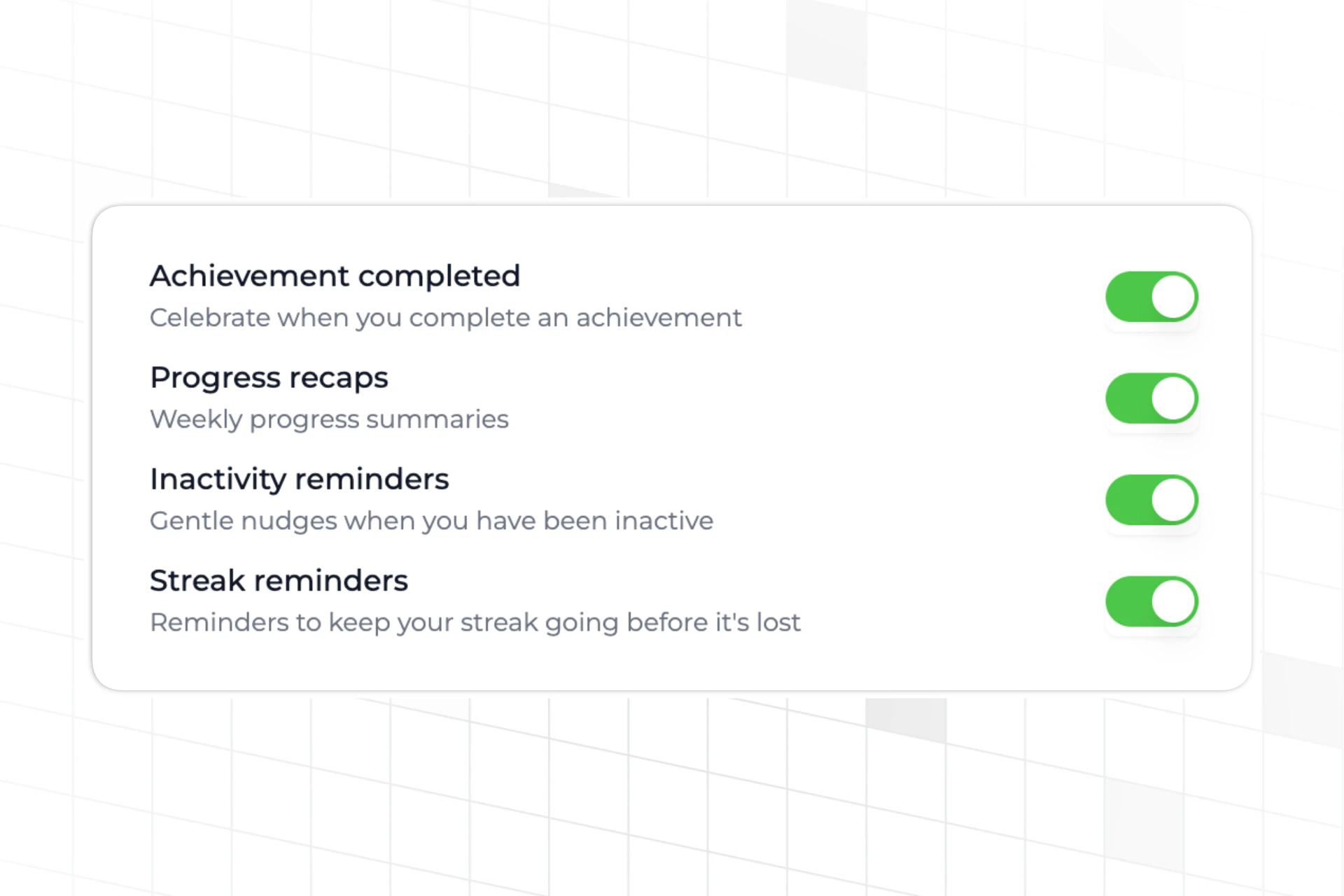 The API lets you update a user's notification preferences for different notification types:
* **achievement\_completed**: Notifications sent when a user completes an achievement
* **recap**: Periodic summary notifications about user progress
* **reactivation**: Notifications sent to re-engage inactive users
* **streak\_reminder**: Reminders to help users maintain their streaks
For each notification type, you can specify which channels the user should receive notifications on: `email`, `push`, or both. To disable a notification type entirely, pass an empty array.
For example, the following code snippet updates a user's notification preferences in Trophy:
```bash cURL theme={null}
curl --request PATCH \
--url https://api.trophy.so/v1/users/user-123/preferences \
--header 'Content-Type: application/json' \
--header 'X-API-KEY: ' \
--data '{
"notifications": {
"recap": ["email"],
"streak_reminder": []
}
}'
```
```typescript Node theme={null}
const response = await trophy.users.updatePreferences("user-123", {
notifications: {
recap: ["email"],
streak_reminder: []
}
});
```
```python Python theme={null}
response = client.users.update_preferences(
id="user-123",
notifications={
"recap": ["email"],
"streak_reminder": []
}
)
```
```php PHP theme={null}
$response = $trophy->users()->updatePreferences("user-123", [
"notifications" => [
"recap" => ["email"],
"streak_reminder" => []
]
]);
```
```java Java theme={null}
UpdateUserPreferencesRequest request = UpdateUserPreferencesRequest.builder()
.notifications(NotificationPreferences.builder()
.recap(Arrays.asList("email"))
.streakReminder(Collections.emptyList())
.build())
.build();
UserPreferencesResponse response = client.users().updatePreferences("user-123", request);
```
```go Go theme={null}
response, err := client.Users.UpdatePreferences("user-123", &UpdateUserPreferencesRequest{
Notifications: &NotificationPreferences{
Recap: []string{"email"},
StreakReminder: []string{},
},
})
```
```csharp C# theme={null}
var response = await trophy.Users.UpdatePreferencesAsync("user-123", new UpdateUserPreferencesRequest
{
Notifications = new NotificationPreferences
{
Recap = new[] { "email" },
StreakReminder = Array.Empty()
}
});
```
```ruby Ruby theme={null}
response = client.users.update_preferences(
id: "user-123",
notifications: {
recap: ["email"],
streak_reminder: []
}
)
```
To build a preference center UI in your application, you'll first need to fetch the user's current preferences using the [get preferences API](/api-reference/endpoints/users/get-user-preferences).
This will return the user's current notification settings, which you can then display in your UI and allow users to modify.
```bash cURL theme={null}
curl --request GET \
--url https://api.trophy.so/v1/users/user-123/preferences \
--header 'X-API-KEY: '
```
```typescript Node theme={null}
const response = await trophy.users.getPreferences("user-123");
```
```python Python theme={null}
response = client.users.get_preferences(id="user-123")
```
```php PHP theme={null}
$response = $trophy->users()->getPreferences("user-123");
```
```java Java theme={null}
UserPreferencesResponse response = client.users().getPreferences("user-123");
```
```go Go theme={null}
response, err := client.Users.GetPreferences("user-123")
```
```csharp C# theme={null}
var response = await trophy.Users.GetPreferencesAsync("user-123");
```
```ruby Ruby theme={null}
response = client.users.get_preferences(id: "user-123")
```
The API returns a response containing the user's current notification preferences for each notification type:
```json Response {3} theme={null}
{
"notifications": {
"achievement_completed": ["email", "push"],
"recap": ["email"],
"reactivation": ["push"],
"streak_reminder": ["email", "push"]
}
}
```
You can use this response to:
* **Populate form controls**: Pre-select checkboxes or toggles in your preference center UI based on the current values
* **Show current state**: Display which notifications are enabled and through which channels
* **Handle missing preferences**: If a notification type is not present in the response, it means the user hasn't set preferences for it yet, and you can default to your application's default settings
Once you've fetched and displayed the preferences, users can make changes in your UI, and you can use the [update preferences API](/api-reference/endpoints/users/update-user-preferences) to save their selections back to Trophy.
The API lets you update a user's notification preferences for different notification types:
* **achievement\_completed**: Notifications sent when a user completes an achievement
* **recap**: Periodic summary notifications about user progress
* **reactivation**: Notifications sent to re-engage inactive users
* **streak\_reminder**: Reminders to help users maintain their streaks
For each notification type, you can specify which channels the user should receive notifications on: `email`, `push`, or both. To disable a notification type entirely, pass an empty array.
For example, the following code snippet updates a user's notification preferences in Trophy:
```bash cURL theme={null}
curl --request PATCH \
--url https://api.trophy.so/v1/users/user-123/preferences \
--header 'Content-Type: application/json' \
--header 'X-API-KEY: ' \
--data '{
"notifications": {
"recap": ["email"],
"streak_reminder": []
}
}'
```
```typescript Node theme={null}
const response = await trophy.users.updatePreferences("user-123", {
notifications: {
recap: ["email"],
streak_reminder: []
}
});
```
```python Python theme={null}
response = client.users.update_preferences(
id="user-123",
notifications={
"recap": ["email"],
"streak_reminder": []
}
)
```
```php PHP theme={null}
$response = $trophy->users()->updatePreferences("user-123", [
"notifications" => [
"recap" => ["email"],
"streak_reminder" => []
]
]);
```
```java Java theme={null}
UpdateUserPreferencesRequest request = UpdateUserPreferencesRequest.builder()
.notifications(NotificationPreferences.builder()
.recap(Arrays.asList("email"))
.streakReminder(Collections.emptyList())
.build())
.build();
UserPreferencesResponse response = client.users().updatePreferences("user-123", request);
```
```go Go theme={null}
response, err := client.Users.UpdatePreferences("user-123", &UpdateUserPreferencesRequest{
Notifications: &NotificationPreferences{
Recap: []string{"email"},
StreakReminder: []string{},
},
})
```
```csharp C# theme={null}
var response = await trophy.Users.UpdatePreferencesAsync("user-123", new UpdateUserPreferencesRequest
{
Notifications = new NotificationPreferences
{
Recap = new[] { "email" },
StreakReminder = Array.Empty()
}
});
```
```ruby Ruby theme={null}
response = client.users.update_preferences(
id: "user-123",
notifications: {
recap: ["email"],
streak_reminder: []
}
)
```
To build a preference center UI in your application, you'll first need to fetch the user's current preferences using the [get preferences API](/api-reference/endpoints/users/get-user-preferences).
This will return the user's current notification settings, which you can then display in your UI and allow users to modify.
```bash cURL theme={null}
curl --request GET \
--url https://api.trophy.so/v1/users/user-123/preferences \
--header 'X-API-KEY: '
```
```typescript Node theme={null}
const response = await trophy.users.getPreferences("user-123");
```
```python Python theme={null}
response = client.users.get_preferences(id="user-123")
```
```php PHP theme={null}
$response = $trophy->users()->getPreferences("user-123");
```
```java Java theme={null}
UserPreferencesResponse response = client.users().getPreferences("user-123");
```
```go Go theme={null}
response, err := client.Users.GetPreferences("user-123")
```
```csharp C# theme={null}
var response = await trophy.Users.GetPreferencesAsync("user-123");
```
```ruby Ruby theme={null}
response = client.users.get_preferences(id: "user-123")
```
The API returns a response containing the user's current notification preferences for each notification type:
```json Response {3} theme={null}
{
"notifications": {
"achievement_completed": ["email", "push"],
"recap": ["email"],
"reactivation": ["push"],
"streak_reminder": ["email", "push"]
}
}
```
You can use this response to:
* **Populate form controls**: Pre-select checkboxes or toggles in your preference center UI based on the current values
* **Show current state**: Display which notifications are enabled and through which channels
* **Handle missing preferences**: If a notification type is not present in the response, it means the user hasn't set preferences for it yet, and you can default to your application's default settings
Once you've fetched and displayed the preferences, users can make changes in your UI, and you can use the [update preferences API](/api-reference/endpoints/users/update-user-preferences) to save their selections back to Trophy.
Streak Preferences
Trophy supports user preferences for streaks, allowing users to customize the conditions they must meet to extend their streak.
In order to use streak preferences, you must have [streak personalization](/features/streaks#streak-personalization) enabled.
Once streak personalization is enabled, the [update preferences API](/api-reference/endpoints/users/update-user-preferences) will allow you to override default streak settings for a specific user.
The following streak settings can be overridden by user preferences:
* `evaluationMode`: Determines how metrics combine to extend the streak. Can be `ALL` or `OR`.
* `metrics`: An array of metrics with custom thresholds required to extend the streak.
```json Streak preferences theme={null}
{
"streak": {
"evaluationMode": "OR",
"metrics": [
{ "key": "words-written", "threshold": 500 }
]
}
}
```
Once streak preferences are set, the [get preferences API](/api-reference/endpoints/users/get-user-preferences) will return the user's personalized streak settings.
To fetch the details of a user that you've already identified with Trophy, use the [Get User API](/api-reference/endpoints/users/get-a-single-user).
This will return the full details of the user along with the `control` attribute that you can use to conditionally enroll users in any gamification features. Learn more about [Experimentation](/platform/experimentation).
```json Response {3} theme={null}
{
"id": "user-id",
"control": false,
"created": "2021-01-01T00:00:00Z",
"email": "user@example.com",
"name": "User",
"subscribeToEmails": true,
"tz": "Europe/London",
"updated": "2021-01-01T00:00:00Z"
}
```
User Analytics
Basic Analytics
By default Trophy includes high-level user analytics including on the [Users page](https://app.trophy.so/users) including:
* The total number of users that you've told Trophy about
* The number of users that are active on a daily basis
* The number of users that are active on a monthly basis
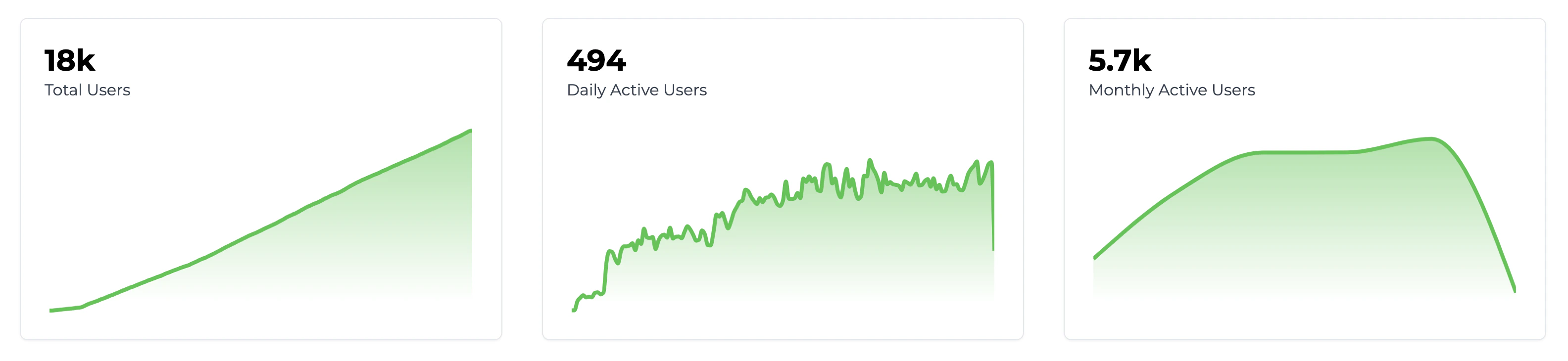 On this page you can also search through every user that Trophy has recorded, which can be useful for debugging.
Top Users
Additionally, on the [Dashboard](https://app.trophy.so), Trophy shows a *Top Users* list with the set of users who have made the most progress against your platform's metrics.
These are your most engaged users, so it's useful to know who they are!
Frequently Asked Questions
As many as you want! Trophy only charges each month for *active* users, which are the users that interact with your product at least once in a given month.
This is great because it means if a user churns, you won't pay for them in subsequent months.
You can view the total number of users you'll be charged for each month within Trophy on the sidebar:
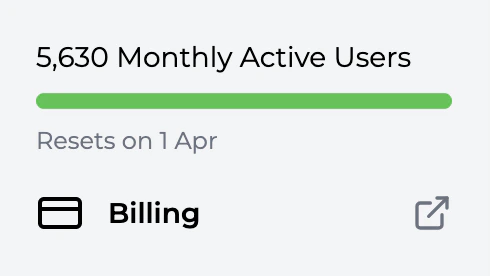 You can estimate your usage costs on our [Pricing page](https://trophy.so/pricing).
Get Support
Want to get in touch with the Trophy team? Reach out to us via [email](mailto:support@trophy.so). We're here to help!